 LumenSmith
Commands
All LumenSmith commands use the base command /ls (alias for /lumensmith). Typing /ls with no arguments opens the recipe browser straight away.
Command Reference
| Command | Description | Permission |
|---|---|---|
/ls |
Opens the recipe browser GUI (shortcut for /ls recipes) |
lumensmith.gui |
/ls help |
Show command overview and version info | lumensmith.gui |
/ls recipes |
Open the in-game recipe browser GUI | lumensmith.gui |
/ls list |
List all blocked outputs and custom recipes (console-style) | lumensmith.admin |
/ls reload |
Reload configuration and recipes instantly | lumensmith.admin |
/ls rescan |
Force all online players' recipe books to update | lumensmith.admin |
/ls fixbook |
Re-discover every plugin recipe for online players (fixes book sync issues) | lumensmith.admin |
/ls create <key> |
Open the in-game recipe creator | lumensmith.create |
/ls delete <key> |
Delete a custom recipe from config | lumensmith.admin |
Command Details
/ls (no arguments)
Opens the recipe browser GUI immediately. The fast path. Anyone with
lumensmith.gui (default true) can use it.
/ls help
Displays the full command overview along with the current plugin version.
Open to all players (lumensmith.gui) so new users can discover the commands they can run.
/ls list
Shows a summary of all currently blocked vanilla outputs (from remove_by_output)
and all registered custom recipes with their keys and types.
/ls reload
Reloads the config.yml and re-registers all recipes without restarting the server.
Existing recipes are removed from all players' recipe books first, then the new recipes are loaded.
config.yml manually, always run /ls reload to apply changes.
/ls rescan
Scans all online players' inventories and unlocks any recipes they should have
based on the auto_unlock_on triggers. Useful after a reload or when
players report missing recipes in their recipe book.
/ls fixbook
Re-discovers every plugin-registered recipe for all online players. Use this if a recipe book seems out of sync after a manual config edit or unusual reload. Adjacent-pair rotations all unlock together (they share a recipe group), so you should rarely need it, but it's there.
/ls recipes
Opens the paginated browser. Click any recipe icon to see its full details. The bottom navigation row includes:
- Nether Star, Create New Recipe (
lumensmith.create): closes the inventory and prompts you in chat for a key, then opens the creator. - Barrier, View Blocked Outputs: toggles into a view of every
material in
remove_by_output. Admins can click a blocked material to unblock it, or click an item from their own inventory to add it. - TNT, Delete Mode (
lumensmith.admin): switches to a red-tinted view where shift-clicking any recipe removes it from config and reloads instantly. Regular clicks just show a hint. The shift requirement is intentional, so a fat-finger click can't nuke a recipe.
lumensmith.gui, default true).
/ls create <key>
Opens the in-game recipe creator GUI. The <key> must be a unique identifier
using only letters, numbers, and underscores (e.g., my_custom_sword).
You can also start the creator from the browser's nether-star button, which will
prompt for the key in chat.
The creator opens with a categorised type selector (5 categories instead of 9 icons):
- Crafting → Shaped, Shapeless, Adjacent Pair
- Cooking → Furnace, Blasting, Smoking, Campfire
- Stonecutting
- Smithing Transform
- Brewing (new in v0.1.5)
Inside the editor you can:
- Click slots and pick items from your inventory (virtual; no real items moved)
- Set the result item and amount (1–64)
- Adjust cooking time and experience for cooking recipes
- Restrict allowed fuels (cooking recipes)
- Choose direction for adjacent-pair recipes
- Override the Unlock Triggers: defaults to your ingredients, or click the Knowledge Book to pick custom trigger materials
When you confirm, the recipe is saved directly to config.yml and loaded instantly.
Broken recipes (e.g. brewing without a bottle, or with a non-potion result) are rejected
with a clear error message instead of saving silently.
/ls delete <key>
Removes the recipe with the given key from config.yml and reloads.
You can also delete recipes from the recipe browser GUI by clicking the TNT icon in the detail view.
config.yml.
Using the In-Game GUI
Everything LumenSmith does is reachable from /ls alone. The
v0.1.5 release reorganised the menus so every action is a couple of clicks deep.
This section walks through the full flow.
The browser (/ls)
Typing /ls with no arguments opens the recipe browser immediately,
gated by lumensmith.gui (default true). One icon per
custom recipe, paginated at 45 recipes per page.
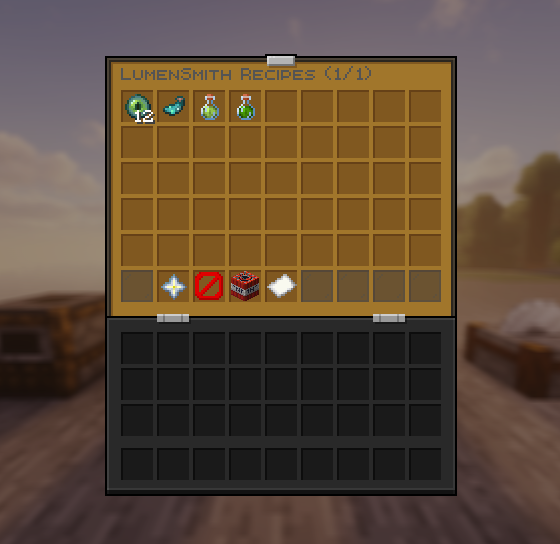
The bottom navigation row at slots 45-53 contains:
| Slot | Icon | Action | Permission |
|---|---|---|---|
| 45 | Arrow | Previous page (if available) | open |
| 46 | Nether Star | Create New Recipe (chat prompt for key) | lumensmith.create |
| 47 | Barrier | Switch to Blocked Outputs view | open |
| 48 | TNT | Enter Delete Mode | lumensmith.admin |
| 49 | Paper | Page indicator (current / total) | open |
| 53 | Arrow | Next page (if available) | open |
The detail view
Clicking any recipe icon opens its detail view. Ingredients are laid out the way you'd see them in vanilla: 3x3 for shaped recipes, three slots for smithing, ingredient-above-bottle for brewing, and so on. An info panel shows the recipe key, type, cooldowns, permissions, and effects.
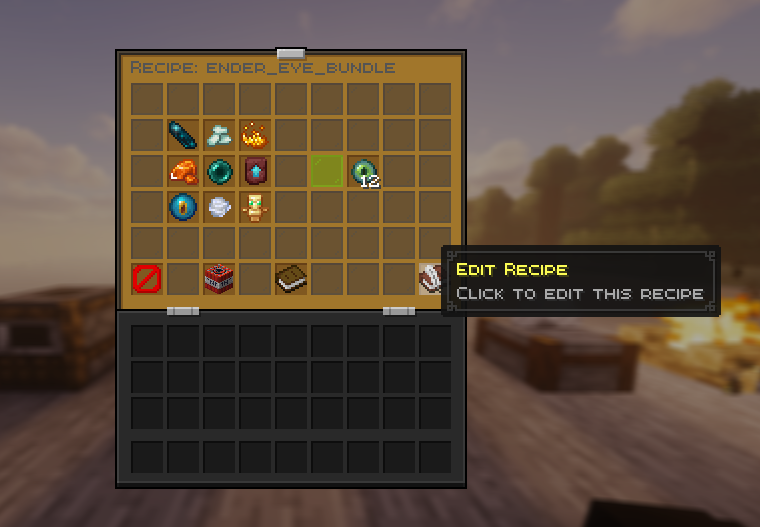
Players with the right permissions also see action buttons:
- Writable Book (slot 53, requires
lumensmith.create): loads the recipe into the creator for editing, with every field pre-filled. - TNT (slot 47, requires
lumensmith.admin): deletes the recipe fromconfig.ymland reloads. - Barrier (slot 45): back to the browser.
The Blocked Outputs view
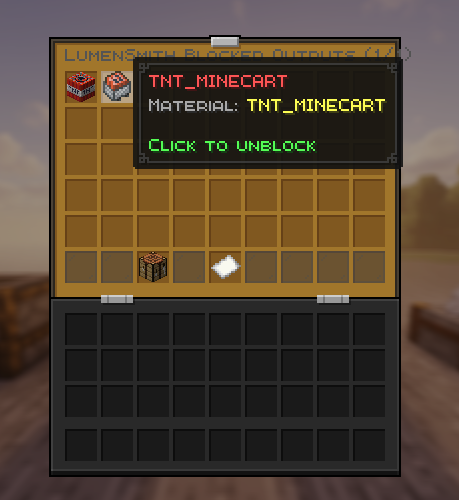
Clicking the Barrier in the browser switches to a paginated view of every material
in remove_by_output. Read-only for normal players; admins get full
live editing.
- Click a blocked material (admin): removes it from
remove_by_output, restores the vanilla recipe, reloads. - Click an item in your own inventory while in this view (admin):
adds that material to
remove_by_output. No real items are moved. - Crafting Table icon (slot 47): switch back to the recipe view.
Delete Mode
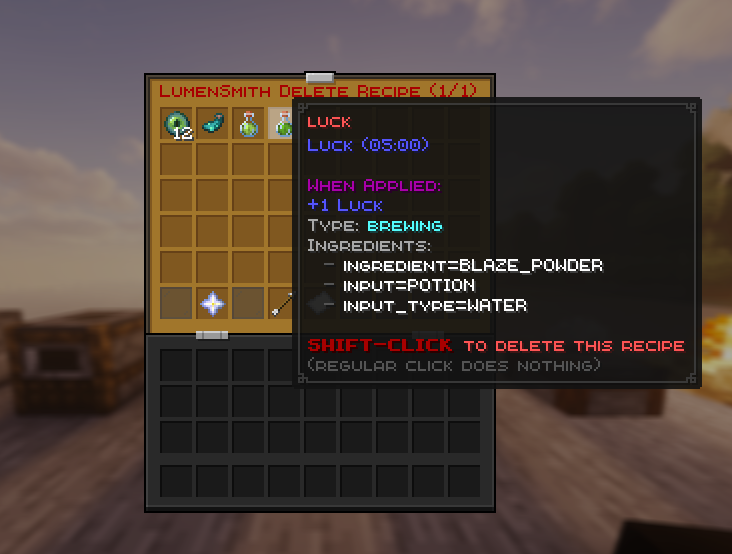
Admins can click the TNT button in the browser to enter Delete Mode. The view re-renders red, every recipe icon shows "SHIFT-CLICK to delete this recipe", and the title bar reads LumenSmith Delete Recipe.
- Shift-click a recipe: removes it from
config.ymland reloads instantly. You'll see a confirmation in chat. - Regular click: shows the "Hold Shift" hint. Intentional, to prevent fat-finger deletions.
- Arrow icon (slot 48): exits Delete Mode.
Creating a new recipe
Clicking the Nether Star in the browser starts the creation flow:
- The browser closes and chat asks for a recipe key (
lowercase letters, numbers, underscoresonly). - Type the key. The plugin checks that it isn't already used and opens the type selector.
- Type
cancelinstead to abort; the prompt also expires automatically after 30 seconds.
The type selector groups the ten recipe types into five categories, centred in row two:
- Crafting Table → sub-menu (Shaped, Shapeless, Adjacent Pair)
- Furnace → sub-menu (Furnace, Blasting, Smoking, Campfire)
- Stonecutter → opens editor directly
- Smithing Table → opens editor directly
- Brewing Stand → opens editor directly
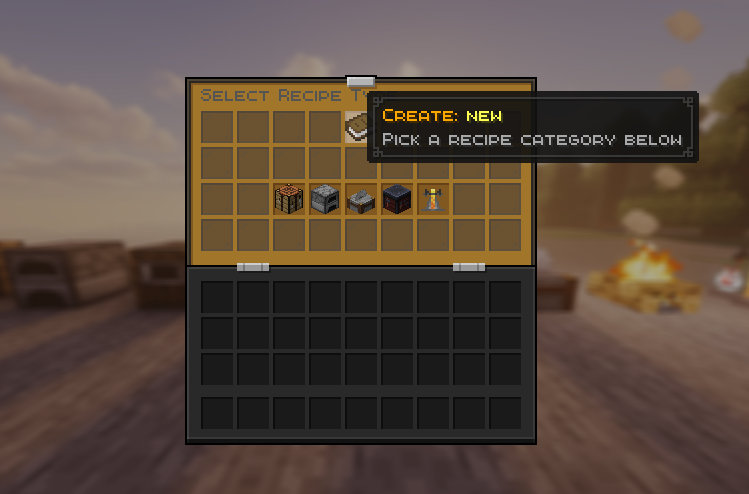
The editor
The editor uses virtual slots: no real items are moved or consumed. Click a slot to select it, then click any item in your inventory to assign that material. Right-click a slot to clear it.
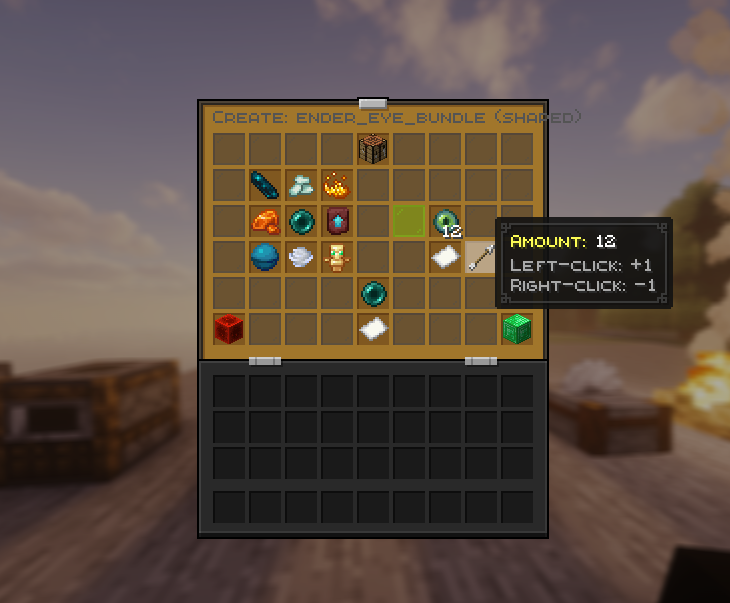
Editor buttons (visible based on the recipe type):
| Button | Slot | What it does |
|---|---|---|
| Type label | 4 | Click to go back to the type selector (resets the recipe). |
| Result | 24 | The output material. Click to assign. |
| Result amount arrow | 34 | Left-click +1, right-click -1. Range 1–64. |
| Cooking time (clock) | 37 | Cooking recipes only. +/- 50 ticks per click. |
| Experience (XP bottle) | 38 | Cooking recipes only. +/- 0.1 per click. |
| Fuel selector (bucket) | 29 | Cooking recipes only. Click to add allowed fuels, right-click to clear back to "Any". |
| Direction (compass / rail / ladder) | 30 | Adjacent-pair only. Cycles Both → Horizontal → Vertical. |
| Unlock Triggers (Knowledge Book) | 40 | Pick custom trigger materials. Right-click to clear back to "Auto". See Auto-Unlock. |
| Confirm (emerald block) | 53 | Validates and saves to config.yml. Reloads instantly. |
| Cancel (redstone block) | 45 | Aborts without saving. |
Session state across menu transitions
Going Main → Sub-menu → Editor → Confirm preserves your work across every step. ESC at any point cleanly cancels. PlayerQuitEvent clears sessions automatically, so a disconnect mid-creation doesn't leak memory.